How to trim a voice memo on iPhone
The quick answer: Voice Memos has a basic trim built in, and for lopping dead air off the ends it works. If you want to see the memo as a waveform, set the exact start and end by ear, and smooth the edges with fades, do it in Pluck. It's free.
The steps
- First, get the memo out of Voice Memos. Open Voice Memos, tap the recording, tap the three dots, then tap Save to Files. Put it somewhere easy to find, like On My iPhone.
- Open Pluck and tap Choose Audio File, then Files, and pick the memo you just saved.
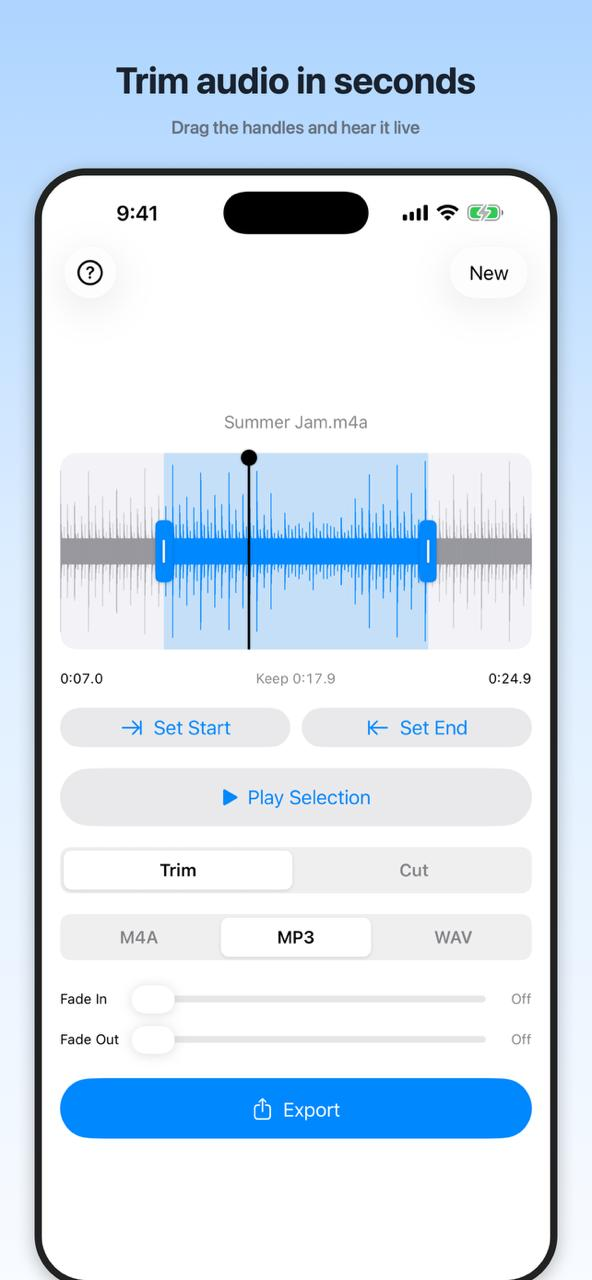
- The whole recording shows up as a waveform. Drag the handles so they wrap the part worth keeping.
- Tap Play Selection to hear exactly what made the cut. Too early or too late? Nudge the handles, or tap Set Start and Set End at the exact moment while it plays.
- Make sure the toggle up top says Trim (trim keeps the highlighted part), then tap Export. The share sheet sends it anywhere: Messages, Mail, back to Files.
Ends sound choppy?
A hard trim can make the first word pop or cut the last one in half. The fix is tiny fades: nudge the Fade In and Fade Out sliders a fraction of a second and the clip starts and ends clean. For speech, even 0.3 seconds makes a difference. You'll see the ends of the waveform slope as you drag.
What about the built-in trim?
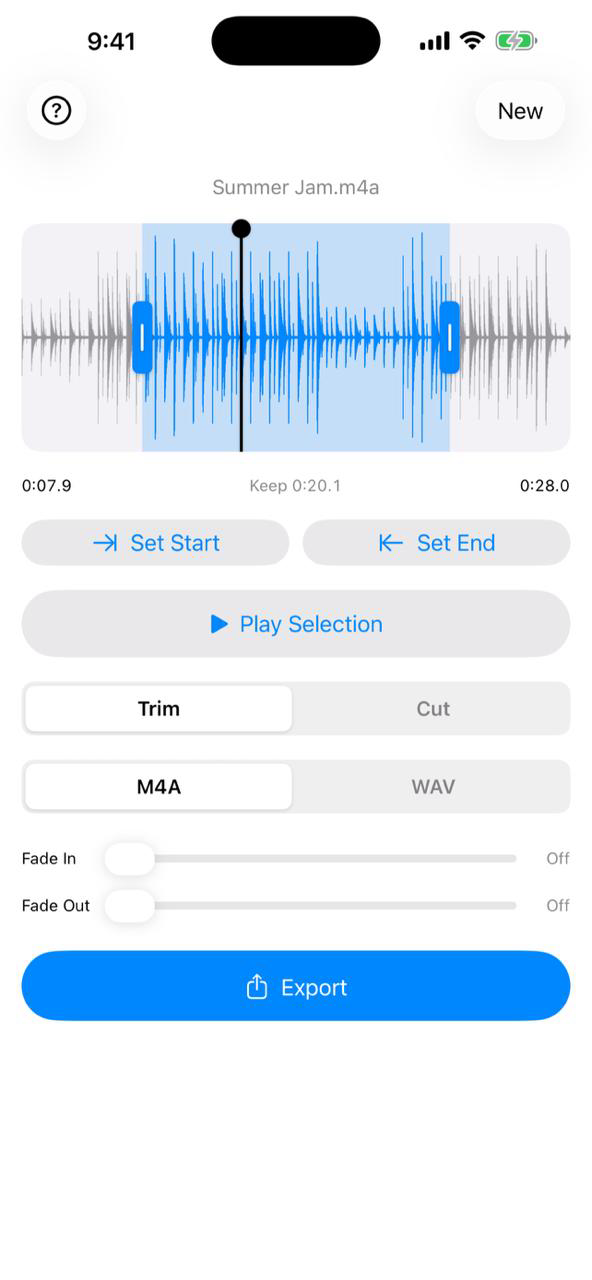
Voice Memos can trim on its own: tap the recording, tap the three dots, then Edit Recording, and drag the yellow handles. For chopping silence off the ends, honestly, it's fine. What it won't give you is fades, a choice of M4A or WAV on export, or a way to remove a chunk from the middle. For that middle part, see how to cut a section out of audio.