How to cut a section out of audio on iPhone
The quick answer: Voice Memos can only trim the ends. To remove a chunk from the middle, like a cough, a long pause, or the part where someone walked in, open the file in Pluck, switch to Cut, and drag over the part you want gone.
The steps
- Get the sound into Pluck: tap Choose Audio File for a file, or Get Audio from Video if it's trapped in a video. Working with a voice memo? Save it to Files first: in Voice Memos, tap the recording, tap the three dots, then Save to Files.
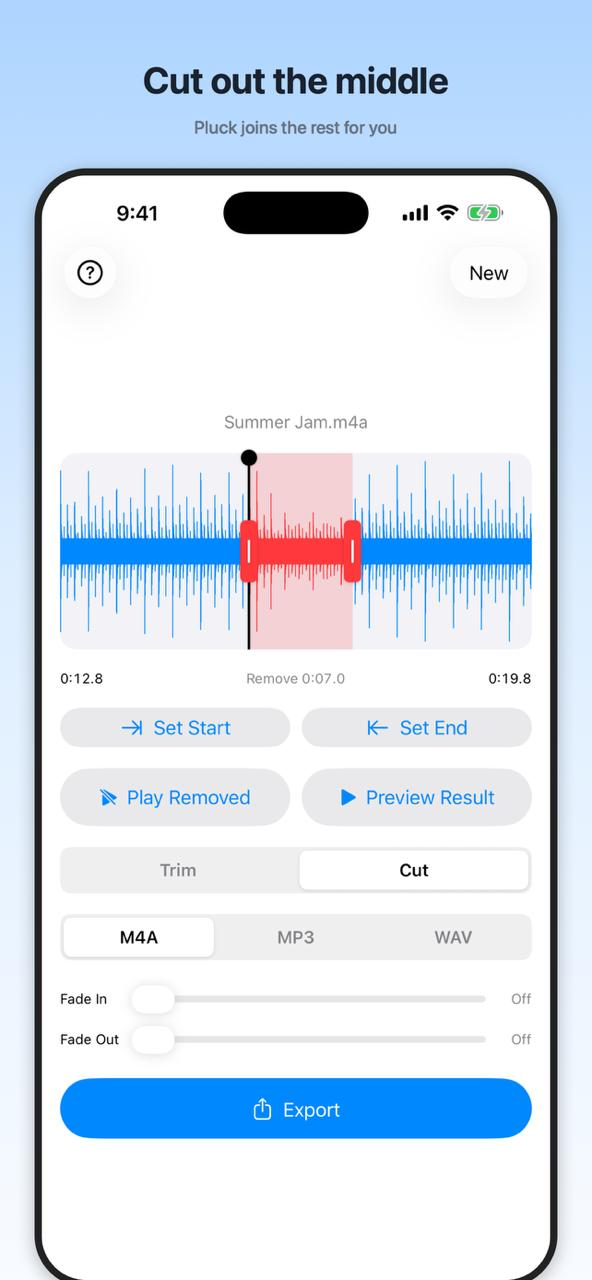
- Tap Cut at the top of the screen. Now the highlighted part is the part that gets removed (the opposite of Trim, which keeps the highlighted part).
- Drag the handles over the section you want gone. It turns purple, with a little note: purple will be removed, everything else stays.
- Tap Play Selection to hear the highlighted stretch. Adjust the handles until the purple covers exactly the bad bit and nothing more.
- Tap Export. Pluck stitches the two good sides together and the share sheet sends the result anywhere.
Make the join invisible
A cut in the middle of speech can sound like a tiny jump. Two things help. First, try to place the edges of the cut during silence or a breath, not mid-word; the waveform shows quiet spots as flat stretches, so aim the handles there. Second, a whisper of Fade In and Fade Out on the final clip smooths anything that's left.
Why not Voice Memos?
The trim in Voice Memos keeps one region and deletes everything outside it. Deleting a piece in the middle while keeping both sides isn't something it can do. GarageBand can split and delete regions, but you're starting a whole project for a ten-second fix. Pluck's Cut mode is built for exactly this one job.