How to convert a video to MP3 on iPhone
The honest answer first: on iPhone you almost never need an actual MP3. What you want is the sound out of the video, and the format that does the job is M4A. It plays everywhere MP3 does. Pluck pulls it out in about 10 seconds, free.
The steps
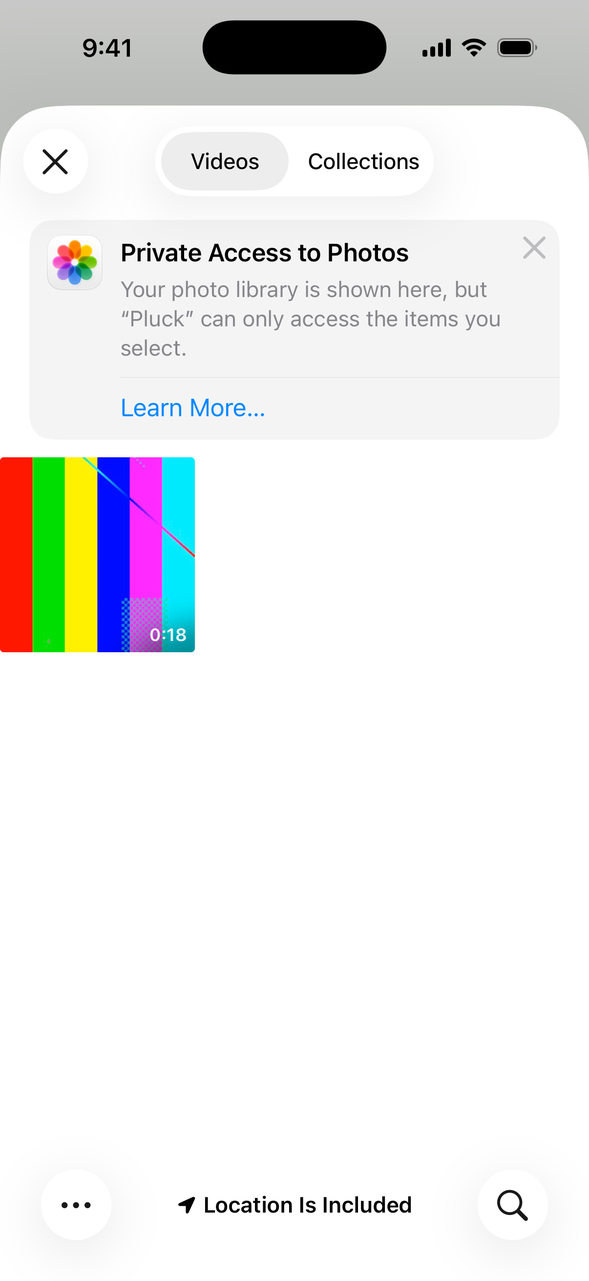
- Open Pluck, tap Get Audio from Video, then Camera Roll, and tap the video.
- Pluck copies the video over and pulls out the audio. A few seconds later you're looking at the sound as a waveform.
- Only want part of it? Drag the handles around that bit and tap Play Selection to check.
- Leave the format on M4A, tap Export, and send it anywhere: Messages, Mail, Save to Files.
Why M4A and not MP3?
M4A is the audio format the iPhone speaks natively. It sounds better at the same file size, and it plays on Android, Windows, Mac, and in every browser. Even Apple's own Shortcuts app, the usual built-in answer for this job, hands you an M4A when it converts a video. MP3 on iPhone is honestly a detour.
When it really has to be an .mp3 file
Sometimes the destination is picky: an old car stereo, a website upload form that only accepts .mp3, a piece of hardware from 2009. In that case, export from Pluck as WAV (the lossless one), then convert on a computer. On a Mac, the Music app makes MP3 versions; on Windows, iTunes does the same. Skip the random converter websites if the recording is personal: your file goes to someone's server, and you have no idea what happens to it there.