How to make a ringtone from a video on iPhone
The quick answer: pull the sound out of the video with Pluck, trim to the good bit, tap Export, then tap Use as Ringtone right in the share sheet. No computer, no GarageBand, no cables.
The steps
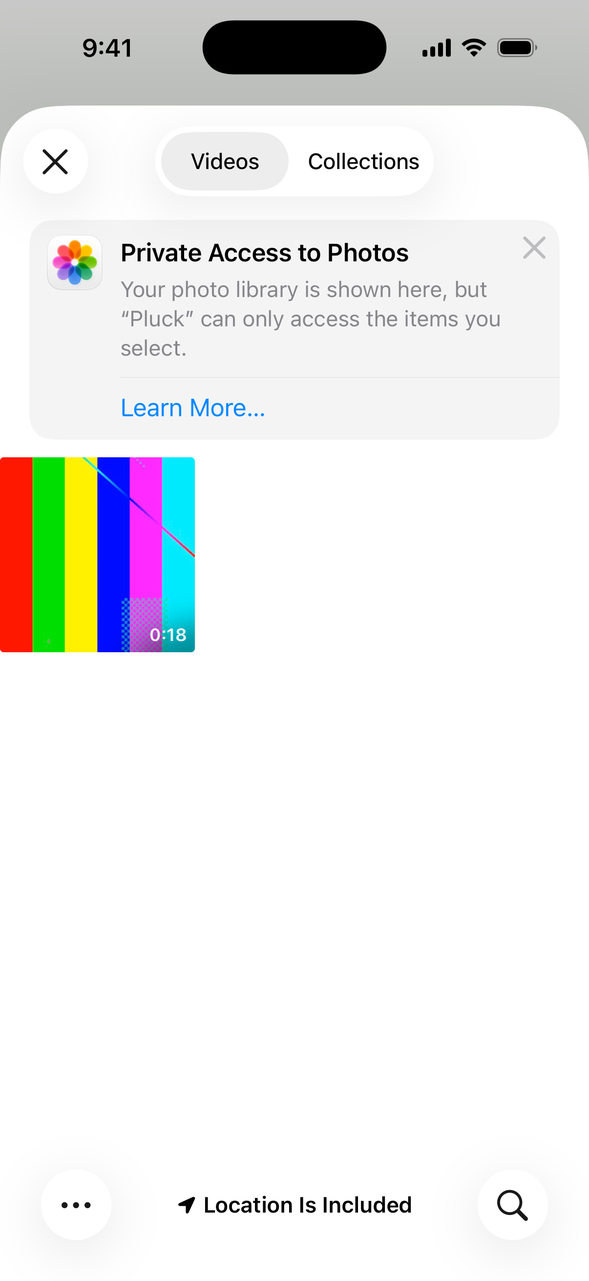
- Open Pluck, tap Get Audio from Video, then Camera Roll, and tap your video. (A screen recording works the same way.)
- Drag the handles on the waveform around the exact moment you want as your ringtone. Tap Play Selection to check it. Keep it short: iPhone ringtones max out around 30 seconds, and the best ones are under 5.
- Optional but worth it: a tiny Fade In so it doesn't blast you, and a Fade Out so it ends clean.
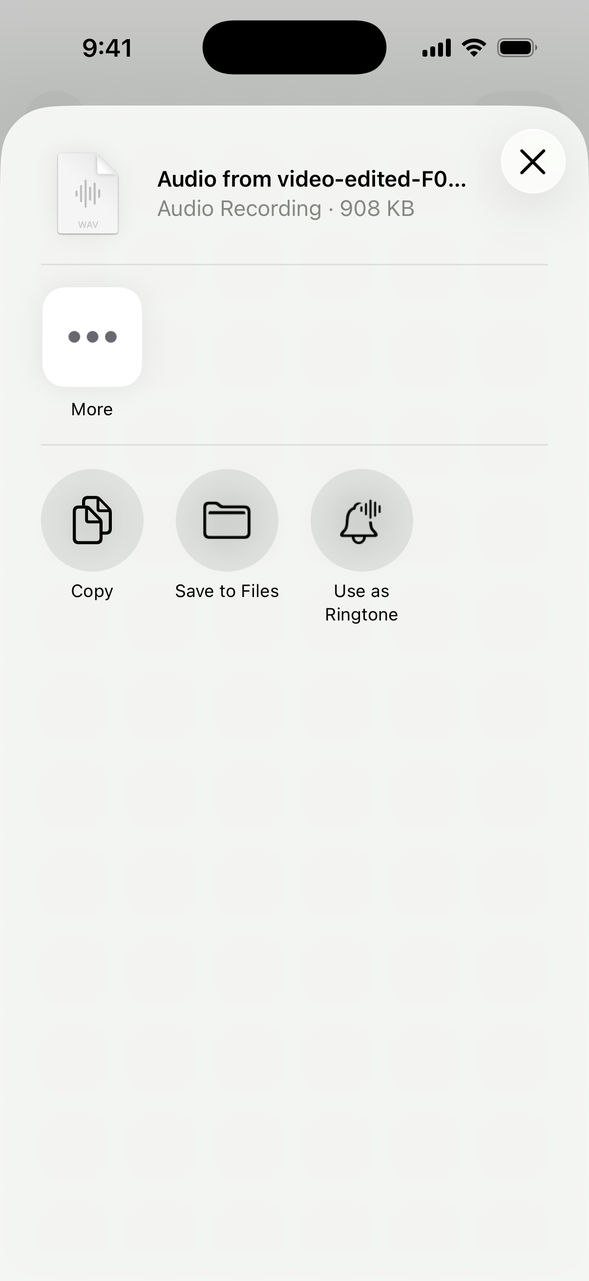
- Tap Export. The share sheet pops up.
- Scroll the share sheet a little and tap Use as Ringtone. Give it a name, tap confirm, and iOS saves it as a real ringtone.
- Set it: Settings > Sounds & Haptics > Ringtone. Or open a contact, tap Edit, and give that person their own.
What about the GarageBand way?
The classic Apple method is importing the audio into GarageBand, trimming it on a timeline, and exporting the project as a ringtone. It works, and it's free. It's also a lot of machinery for one sound: you make a project, learn the timeline, and do an export dance. If you like GarageBand anyway, go for it. If you just want the funny clip from that video, the share sheet route above is about a minute.
Everything happens on your iPhone. No uploads, no servers, no accounts. Pluck works with no internet at all.
Get Pluck free on the App Store
Free. No ads.