How to get audio from your iPhone to your computer
The quick answer: everything moves through the share sheet. Save to iCloud Drive and the file just appears on your computer. On a Mac, AirDrop is even faster. No cables, no emailing yourself.
The iCloud Drive way (Mac and PC)
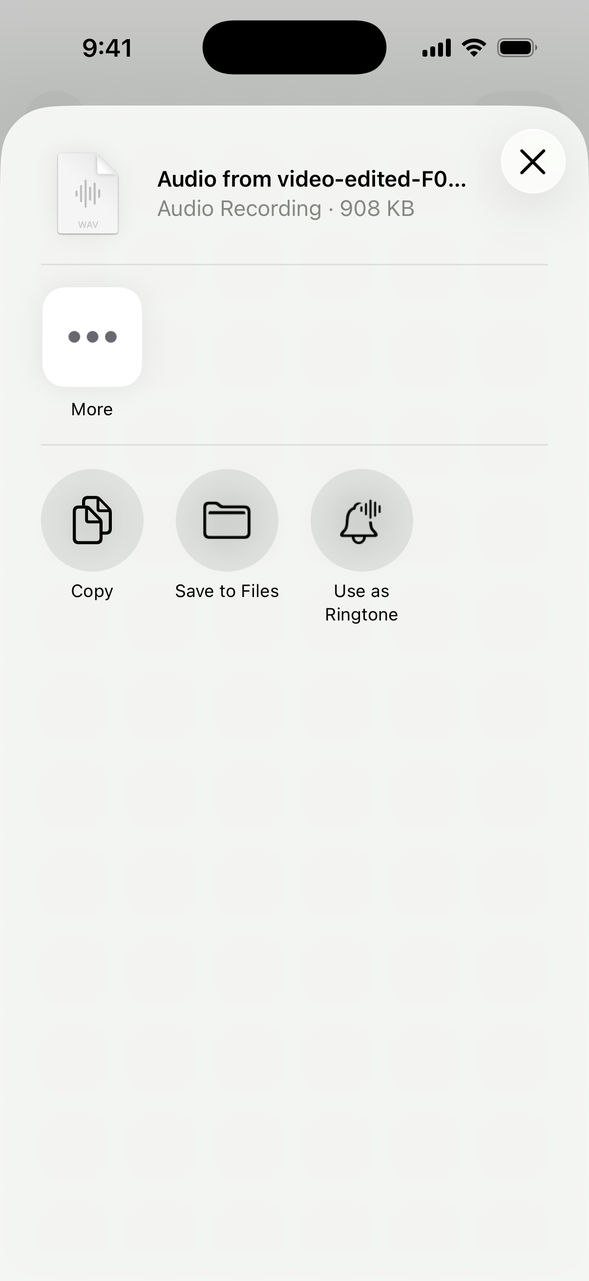
- In Pluck, tap Export. The share sheet pops up.
- Tap Save to Files and pick a folder under iCloud Drive, then tap Save.
- On a Mac: open Finder and click iCloud Drive in the sidebar. Your file is right there.
- On Windows: open the iCloud for Windows app, or go to iCloud.com, sign in, open iCloud Drive, and download the file.
The AirDrop way (Mac, fastest)
Same share sheet, but tap AirDrop and pick your Mac. The file lands in your Downloads folder in seconds. If both devices are yours and on the same Apple account, there's nothing to accept, it just arrives.
Trim before you move it
If the sound is headed into an editor on your computer, do the rough cut on your phone first. Dragging handles on a waveform is quicker than scrubbing a timeline, and you only move the part you actually need. In Pluck: wrap the handles around the good bit, tap Play Selection to check, add a little Fade In and Fade Out, then export. For editing, switch the format to WAV first: it's lossless, so it survives every cut and re-export your editor puts it through.