How to fade audio in and out on iPhone
The quick answer: open the sound in Pluck, nudge the Fade In and Fade Out sliders, done. About a minute, free, and nothing gets uploaded anywhere.
The steps
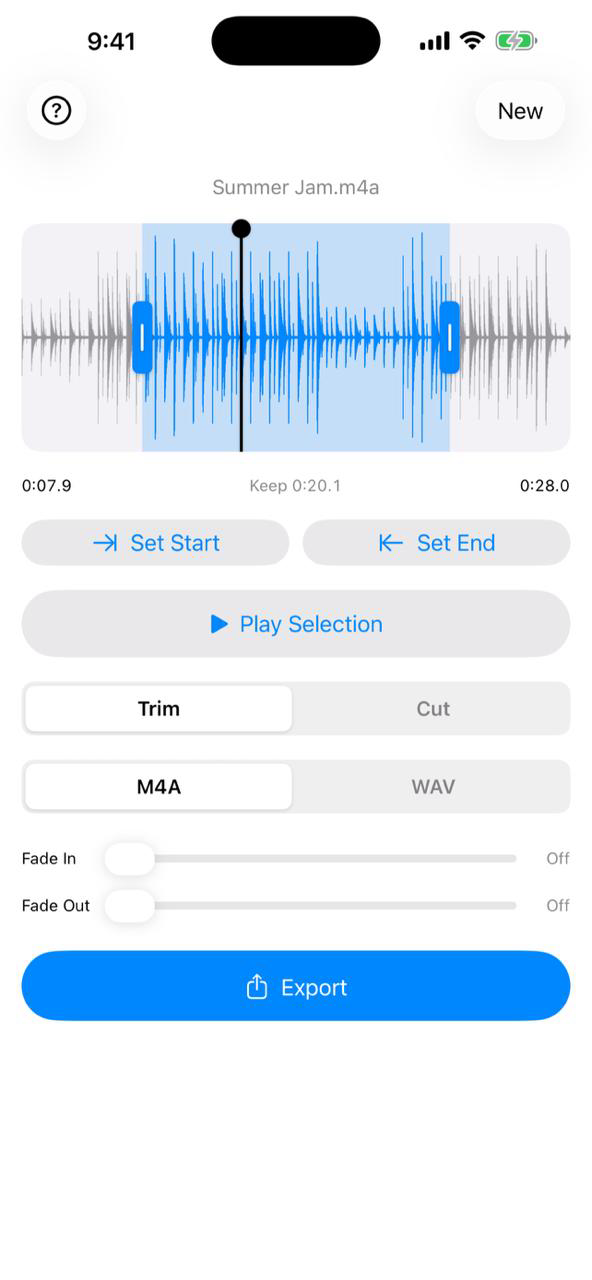
- Open Pluck. Tap Choose Audio File for a sound file, or Get Audio from Video if the sound lives in a video.
- Once it's loaded, drag Fade In a little to the right. Watch the start of the waveform slope up from silence.
- Same idea at the other end with Fade Out, so the sound tapers off instead of stopping dead.
- Tap Play Selection to hear it before you commit. Too sudden? Drag a little more.
- Tap Export, leave the format on M4A, and send it anywhere from the share sheet.
How much fade?
For speech, keep it short. A third to half a second is plenty: long enough to kill the pop at the start, short enough that nobody misses a word. For music, longer fades sound natural. A second or two at the end of a song clip feels like a proper outro instead of someone yanking the plug.
The sliders show the exact time next to them, so you can repeat a fade you liked.
What about the built-in way?
iMovie can fade audio, but only inside a video project: you're building a whole movie timeline just to soften the end of a sound. GarageBand can automate volume too, and same problem, it's a full project for a two-second fix. If the sound is a file on your phone, Pluck is the fast path.