How to extract audio from a video for CapCut
The quick answer: pull the sound out of the video with Pluck on your phone, do the trimming there where it's easy, export a lossless WAV, and open that file in CapCut on your computer.
The steps
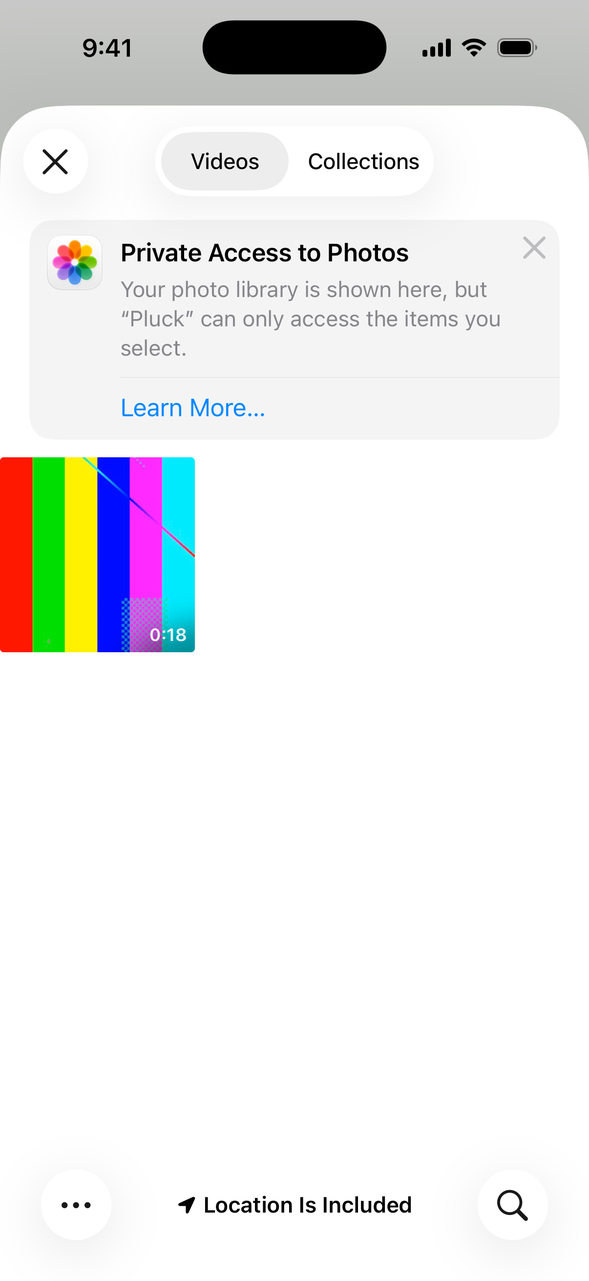
- Open Pluck, tap Get Audio from Video, then Camera Roll, and tap the video.
- Drag the handles on the waveform around the part you need. Tap Play Selection to check it. Harsh ends? Nudge Fade In and Fade Out.
- Switch the format from M4A to WAV. WAV is lossless, which matters once an editor starts cutting, stretching, and re-exporting the sound.
- Tap Export, then Save to Files and pick iCloud Drive. On a Mac, AirDrop works too.
- On your computer, import the file into your CapCut project like any other audio clip. Same goes for Premiere, Audacity, DaVinci, whatever you cut in. The file is just a file.
Why not just do it all in the editor?
If the video is already sitting in your editor's timeline, use the editor's own audio tools. That's what they're for. The Pluck route earns its keep when the video is in your camera roll and all you want is its sound: no new project, no importing a whole video for one clip of audio, no scrubbing a timeline on a laptop trackpad to find the good second. You trim on the phone with your thumb, and the computer only ever receives the finished piece.
M4A or WAV for editing?
Quick meme edit you'll export once? M4A is fine. Anything with real work ahead of it, like layering, pitch changes, speed ramps, multiple exports, go WAV. It starts lossless and stays lossless until you say otherwise.